Tasks Tab⚓︎
The Tasks Tab allows you to manipulate the Tasks that are defined in the Workspace as well as the Actions within those Tasks.
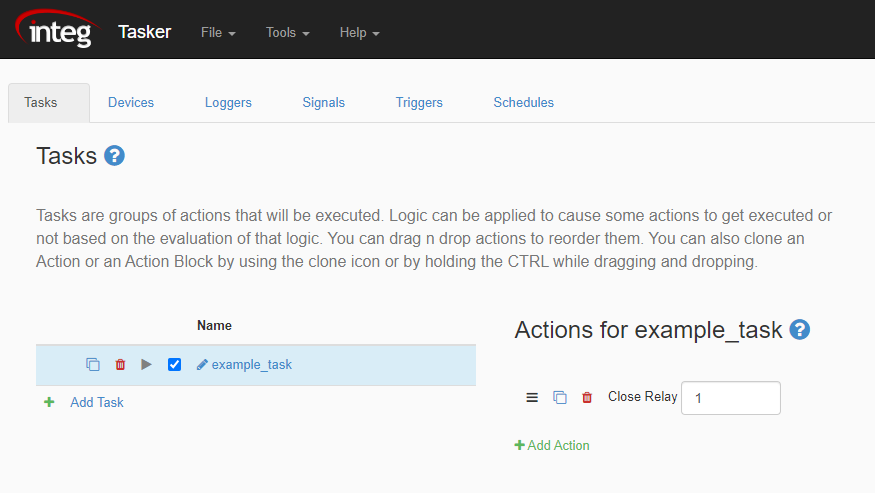
Below are the different options when using the Tasks Tab:
- Adding a Task - The 'Add Task' option allows you to add a Task to the list of Tasks. New Tasks are added from top to bottom.

- Removing a Task - The trash icon below allows you to remove a Task from the list of Tasks. A removed task shifts all tasks under it up in the list of tasks.

-
Selecting a Task - To select a Task, simply click a task in the Task Tab, and all the actions in the Task will be displayed.
-
Reordering a Task - When two or more tasks are added in the Tasks Tab, arrows next to each task will appear. These arrows shift tasks up and down within the list of tasks, allowing you to reorder them.

- Cloning a Task - The clone icon below allows you to copy Tasks that are already in the Task Tab. The cloned task will appear at the bottom of the list of tasks.

- Executing a Task - The play icon allows you to execute a task.

- Renaming a Task - The pencil icon allows you to rename the selected task.

- Adding an Action - Clicking in the 'Add Action' option inside a task will open a dialog, allowing you to select an action to add to the Task.

- Reordering an Action - When two or more actions are added in a task, arrows next to each action will appear. These arrows shift actions up and down within the list of tasks, allowing you to reorder them. Additionally, actions can be dragged to where you want them reordered as well.
- Clone an Action - The clone icon allows you to copy actions that are already in a task. The cloned action will appear under the action it copied.
- Remove an Action - The trashcan icon removes the action from the task. Actions nested inside the action you removed are lost as well.
Task Actions⚓︎
There are a LOT of different actions that can be included in a task. Check out the 'task actions' section to see how each action works.