Home View⚓︎
This is the home view and is the landing page for Tasker. The table below shows the available workspaces on the JNIOR. Each workspace is identified by the file name. Files that are stored in the /flash/tasker/workspaces directory that end in .json are identified as workspace files. The version and notes are fields are stored inside of the workspace file. Each workspace file is opened to obtain this information. There are several user actions that can be performed on the home view page to manage the workspaces files on the JNIOR.
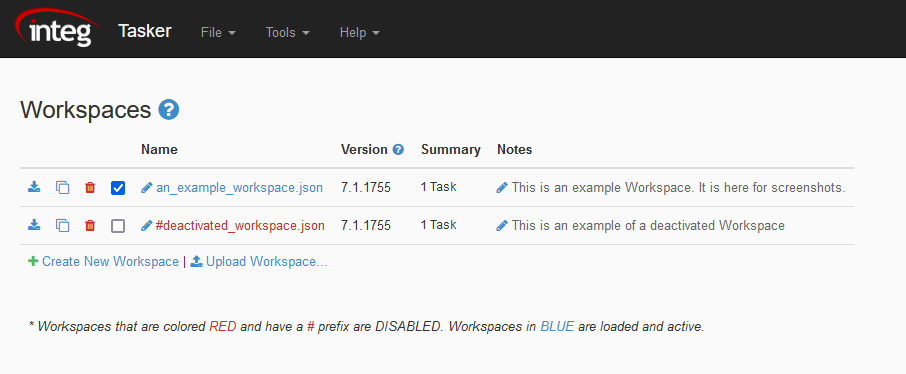
Below is what each option on the workspace view does:
-
Open a Workspace - You can open a workspace by clicking on the name of one you wish to open.
-
Create a New Workspace - Clicking 'Create a New Workspace' adds a new workspace to Tasker. Changes will not be saved until the Save As… function is performed. Only at that point will the workspace be loaded by Tasker.

- Upload a Workspace - Clicking 'Upload Workspace' a workspace to the JNIOR that is saved on your local computer by clicking this option. This will launch your OS's file explorer to allow you to select the workspace file that you want to upload.

- Download a Workspace - You can download a workspace by clicking the download icon below in front of any workspace in the workspace view. This will open your PC's file explorer to download the file locally.

- Clone a Workspace - You can clone a workspace by pressing the clone icon below in front of any workspace in the workspace view. If a new workspace is desired that is close in configuration to a current workspace, then cloning a workspace might be the desired option.

- Remove a Workspace - To remove a workspace, simply click the trash icon below in front of any workspace in the workspace view. The workspace will be renamed on the JNIOR so that it doesn’t show up as a valid workspace.

- Enable/Disable a Workspace - You can Enable/Disable a workspace by pressing the checkbox icon below in front of any workspace in the workspace view. While checked, the workspace is active.

- Rename a Workspace - A workspace can be renamed by pressing the pencil icon below next to the name of the workspace.

- Edit Notes for a Workspace - You can edit the notes by pressing the pencil icon below in the notes column. A workspace can have notes assigned. These notes help users understand the purpose of the workspace. The notes are optional.