File Menu⚓︎
The first menu at the top of the Tasker Webpage is the File menu. Items in this menu will change based on whether a Workspace is open. With the absence of an open Workspace you will still be able to Create a new workspace, open a workspace, upload a workspace or edit preferences.
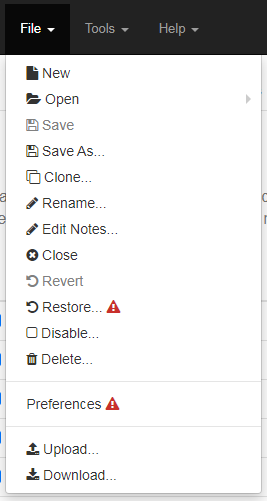
Below is a list on what each option in the menu does:
-
New: - Adds a new Workspace to Tasker. Any changes will not be saved until the Save As… function is performed. Only at that point will the Workspace be loaded by Tasker.
-
Open: - Opens a sub-menu of saved workspaces on the unit. Choosing one opens that workspace as the current active workspace.
-
Save: - Saves the current Workspace. Available whenever the Workspace configuration has been modified.
-
Save as...: - Saves the Workspace with a new name.
-
Clone...: - Clone creates a copy of the current file and saves it with a new name.
-
Rename...: - Rename prompts the user for the new name. The Workspace is then renamed to the new name. The Rename does not force any changes to be saved.
-
Edit Notes...: - Allows the user to Edit the Notes that are saved to the Workspace. These Notes help users understand the purpose of the Workspace. The Notes are optional.
-
Close: - Closes the current Workspace File. This action will return the user to the Workspaces View.
-
Revert: - The Revert action simply reloads the last saved Workspace configuration.
-
Restore: - The Restore action recovers a workspace that has been deleted. NOTE: This functionality is not yet implemented.
-
Enable/Disable: - By default workspaces are enabled. Disabling the workspace allows the workspace file to live on the JNIOR but not have any of its configuration active. NOTE: ALL workspaces are activate at the same time unless disabled.
-
Delete: - This will remove the workspace file from the JNIOR. It will no longer show up in the workspaces view. To guard against an accidental deletion, a backup is made by renaming the workspace file with the .bak file extension.
-
Preferences: - The File Preferences is a location configuration for items that apply to all workspaces. NOTE: This functionality is not yet implmemented.
-
Upload: - This prompts the user to select a file on the local machine to upload to the JNIOR in the workspaces directory. The filename is checked for the .json file extension.
-
Download: - Prompts the user for the location on the local machine where the Workspace file should be saved.