Other Actions⚓︎
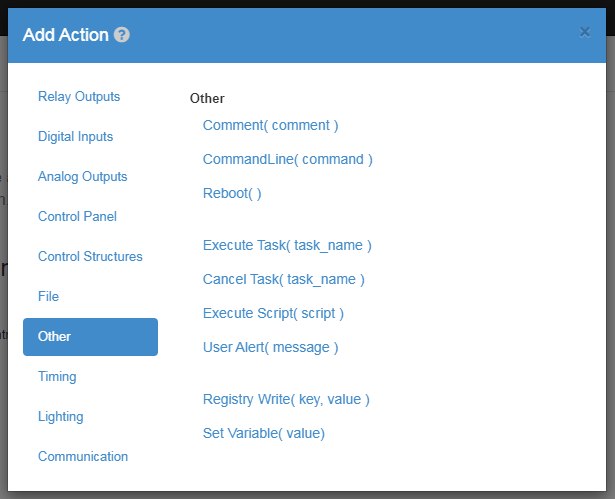
Comment⚓︎

The Comment Action allows you to add descriptive text in a task as an action. This action doesn't do anything, but is useful in case someone other then the creator of the Task wants to use it, so they can see a description of what it is doing.
| Element | Type | Notes |
|---|---|---|
| Comment | String | Text for the comment. |
Command Line⚓︎
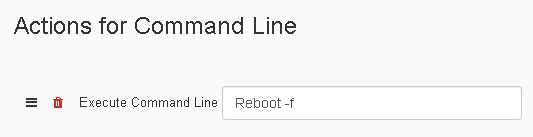
The Command-Line Action allows you to execute commands from the command line through Tasker. In the example above, we use a reboot -f to simply make the JNIOR reboot. We don't use a normal reboot command here because doing a normal reboot requires addtional input that won't be provided from one command line execution. Reboot -f on the other hand instantly reboots without requiring more input from the user.
| Element | Type | Notes |
|---|---|---|
| Command | String | The telnet command that will be executed. |
Reboot⚓︎
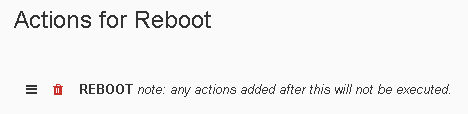
The Reboot Action makes the JNIOR reboot once the action executes. As the note explains when adding the action to a task, if any other actions are added to the task after the reboot action, they will not execute.
| Element | Type | Notes |
|---|---|---|
| - | - | Reboot will immediately take effect when this actions executes. |
Execute Task⚓︎

The Execute-Task Action allows you to run a task from inside a task. This will not pause the current task from executing while the other task runs. Variables declared in the task will stay in scope and be passed to the new task. NOTE: Do not call a task inside of itself, this can potientially crash the JNIOR.
| Element | Type | Notes |
|---|---|---|
| Task | String | The task in the workspace you want to execute from this action. |
Cancel Task⚓︎
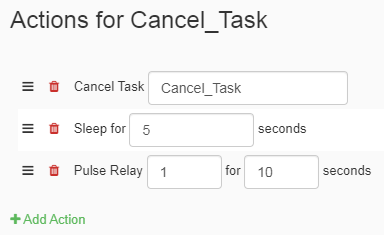
The Cancel-Task Action allows you to prematurely end a task that is already running. This can be used to end the task its put in or other tasks in the workspace. In the picture above the Task cancels itself before it can pulse output 1.
| Element | Type | Notes |
|---|---|---|
| Task | String | Stops the task whos name is entered here if its currently running. |
Execute Script⚓︎
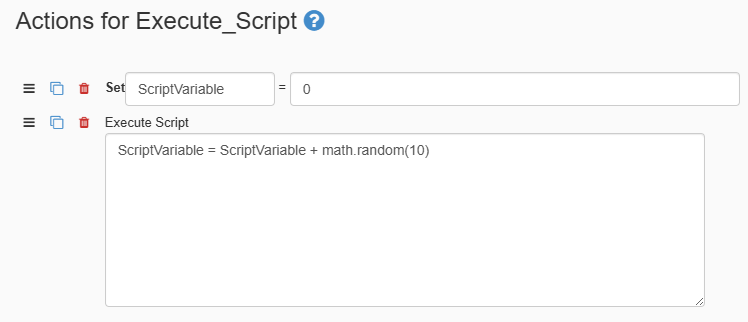
The Execute-Script Action provides a box to execute functions or perform computations in. To show what can be executed in the script box, in the example provided we start by declaring a variable called ScriptVariable and give it the value of zero. After that, executing the script action takes the ScriptVariable and adds a random number from 1 to 10 to it using the math.random function. This shows you can call functions, peform math equations, and reference variables in the script box.
| Element | Type | Notes |
|---|---|---|
| Commands | String | Evaluates expressions entered here. |
User Alert⚓︎
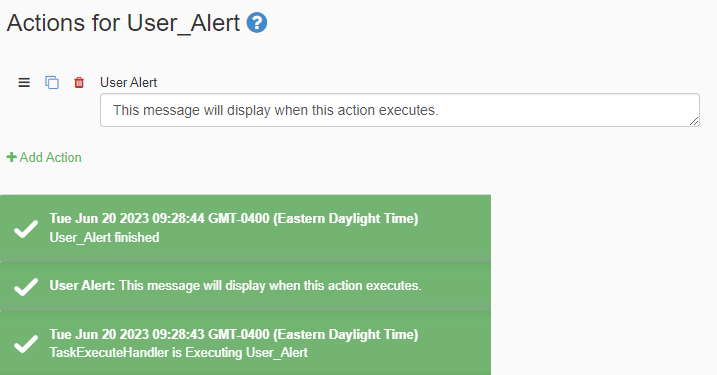
The User-Alert Action sends a custom message on the websocket. The Tasker interface will show the user alert in the notification popup at the bottom of the screen. Optionally, a custom interface can be made to interact with this via websockets as well.
| Element | Type | Notes |
|---|---|---|
| Alert | String | Text that will be displayed in the alert. |
Registry Write⚓︎

The Registry-Write Action changes the value of a registry key in the JNIOR. You first enter the registry key on the JNIOR that you wish to change, and then you enter the value you want to set it to.
| Element | Type | Notes |
|---|---|---|
| Registry Key | String | Pathing of the registry key on the JNIOR. Will create a key if it doesn't exist. |
| Data | String | Value that will be entered into the registry key. |
Set Variable⚓︎
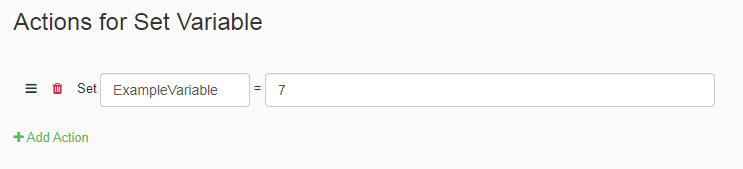
The Set-Variable Action allows you to create a variable within your task using two values. This is useful, since you can use this value to manipulate or change the logic of other actions. The first value of the action is the name of the variable you want to create, and is used to reference it when you want it implemented in other actions. The second value is the value that the variable is set to, which can be output relays, numerical values, other variables, etc.
Global Variable⚓︎
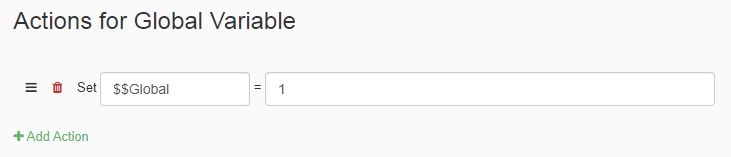
When creating a variable to use in Tasker, you can make the variable global. This will allow you to use this variable in other tasks where it wasn't declared in. To make a variable global, you simply add two $$ before the name of the variable like in the example picture above.
| Element | Type | Notes |
|---|---|---|
| Name | String | The name you are assigning the value. |
| Data | String | Value that the variable will reference. |