Schedules Tab⚓︎
The Schedule Tab allows you to add schedules for when your Tasks should run. This can range from a specfic hour every day to once a month.
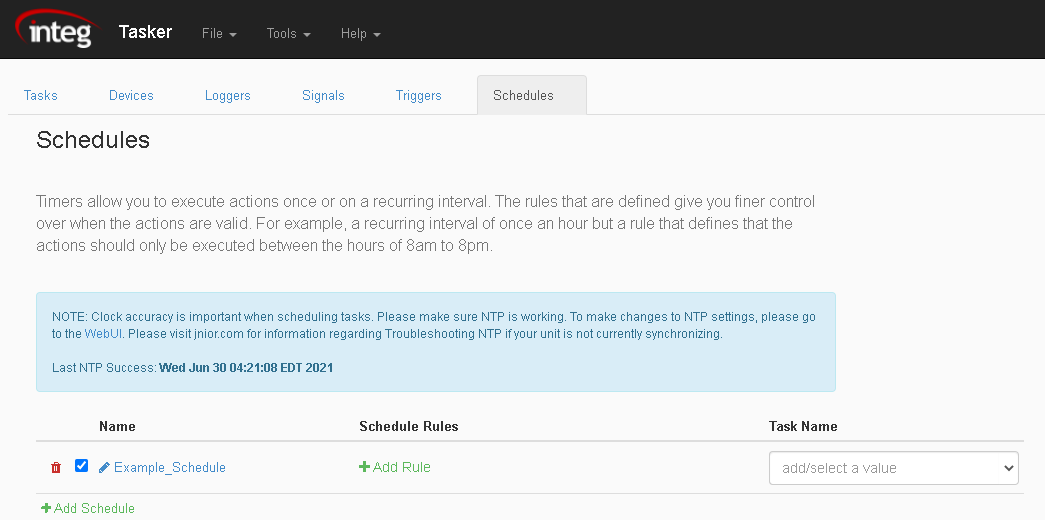
- Adding a Schedule - Use the 'Add Schedule' option to add a schedule. The added schedule can then be referenced from other tabs.
- Removing a Schedule - Use the trashcan icon to delete a schedule. This will remove the Schedule from the list of schedules.

- Reordering a Schedule - When two or more schedules are added in the Schedules Tab, arrows next to each schedule will appear. These arrows shift schedules up and down within the list of schedules, allowing you to reorder them.

- Renaming a Schedule - Use the pencil icon to rename a schedule.

- Enable/Disable a Schedule - Use the checkbox icon to set the schedule as active or not.

- Adding a Rule - Use the 'Add Rule' option adds a rule to the schedule. This rule sets the time that the schedule will activate.

Schedule Rules⚓︎
A schedule rule allows you to set a rule for the schedule, which sets a task to activate at a specific time.
-
On Boot - The On Boot option will make the schedule activate the Task its given everytime the JNIOR turns on.
-
Sunrise - The Sunrise option will make the schedule activate the Task its given at sunrise for the JNIOR's current location. The location needs to be entered in the JNIOR for it to work.
-
Sunset - The Sunset option will make the schedule activate the Task its given at sunset for the JNIOR's current location. The location needs to be entered in the JNIOR for it to work.
-
Schedule - The Schedule option gives many ways to schedule a Task to activate. First you can select the date that the schedule will begin to activate using the Start On field. Then you select the time during the day that the schedule will begin using the Start Time field. The Repeat every field allows you to select from seconds to hours how often the schedules should reactivate, and allows you to set when it should stop repeating for the day as well. Lastly, you can set the Date Selection field to switch between none, daily, weekly, and monthly. None will make the schedule run only once. Daily will make it run everyday. Weekly will let you select what days of the week the schedule will run.