Remotely Executing a Task in Tasker
When using Tasker, to execute a task you can click the play button next to the task you wish to execute. But what if you wanted to execute a task remotely? This post explains how.
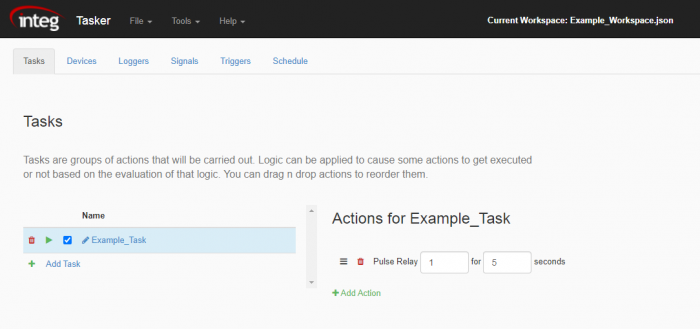
You’ll start by going to the Tasker Web Page, create a workspace, and then create a task inside the workspace. Give it an action so when we execute it remotely we can see it perform the action. Then save the workspace.
The next step to remotely communicating with Tasker in this example is to open a command-line session. You can do this through the JNIOR Support Tool or JNIOR Supporter and go to Tools ->Command Line.
NOTE: As of Support Tool 7.16, the command line has been replaced with a PuTTY terminal. Connection configuration should now be done through the PuTTY Configuration dialog before the terminal is opened. If PuTTY is installed, the PuTTY Configuration dialog will launch from the Tools -> Command Line option.
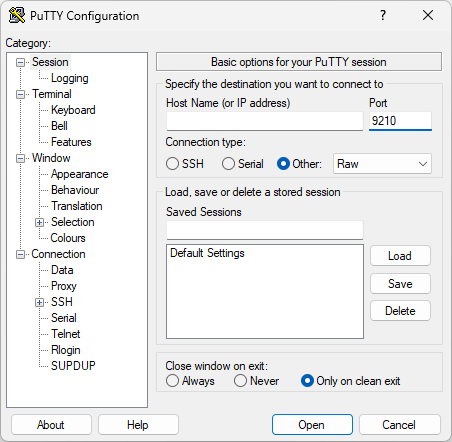
Tasker listens for messages using TCP on port 9210, so we will set our connection type in PuTTY to Raw, and the Port to 9210. The IP address will be the IP of your JNIOR.
Once this is done, all you need to do is type the command to execute a task. To do this, you type “task.execute TASKNAME\r\n”. So if you had a Task in Tasker called CloseOutput1, the command you would type is “task.execute CloseOutput1\r\n” and then press enter.
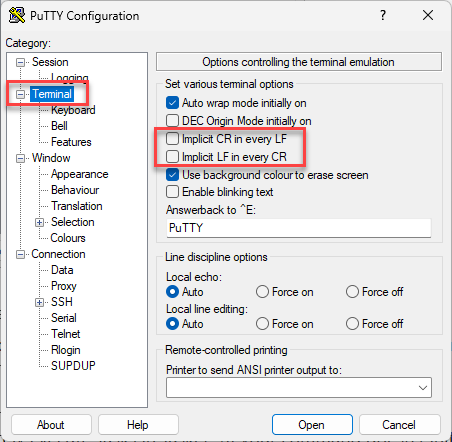
With this, you should now be able to remotely execute Tasks in Tasker! (If your command doesn’t initally work, make sure your “\r\n” is being converted into a carriage return and line feed in PuTTY. This can be set under the Terminal setting in PuTTY configuration.)