Creating a DMX Trigger
In the DMX application’s webpage, you create scripts to change the 512 DMX channels. Once you have a script, you’ll then want to be able to activate it. One way to set up a script to activate is by giving it a trigger. This post will explain how to create a trigger for a script.
Open the DMX application’s webpage, and go to the Triggers tab. Once there, you’ll see the I/O layout for your JNIOR, which shows the number of inputs and outputs it has. For example, if you enter a trigger in row 1 for the JNIOR Output Actions, that trigger will execute when output 1 on the JNIOR activates.
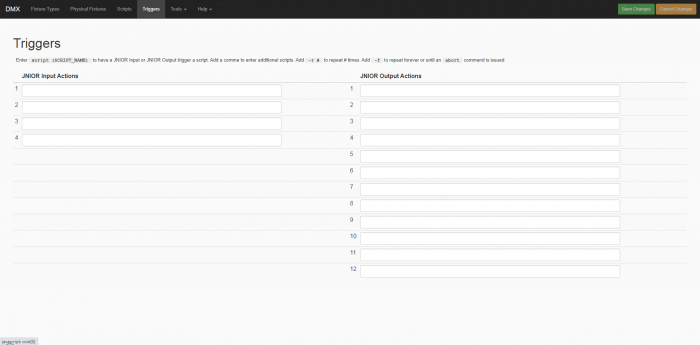
To set up a script to trigger on one of the I/Os, you’ll enter “script (SCRIPT_NAME)” into one of the I/O spots. (You don’t need to include the .script after the script’s name in the trigger. That is automatically handled.) You can additionally enter -f or -r after the script name to add additional effects to the script running. You can also enter “abort” into one of the I/O spots to make any script stop running when that I/O value occurs.




Once you’ve entered and saved a script name value in an I/O slot, you should now have a script set to run when the selected I/O value activates.